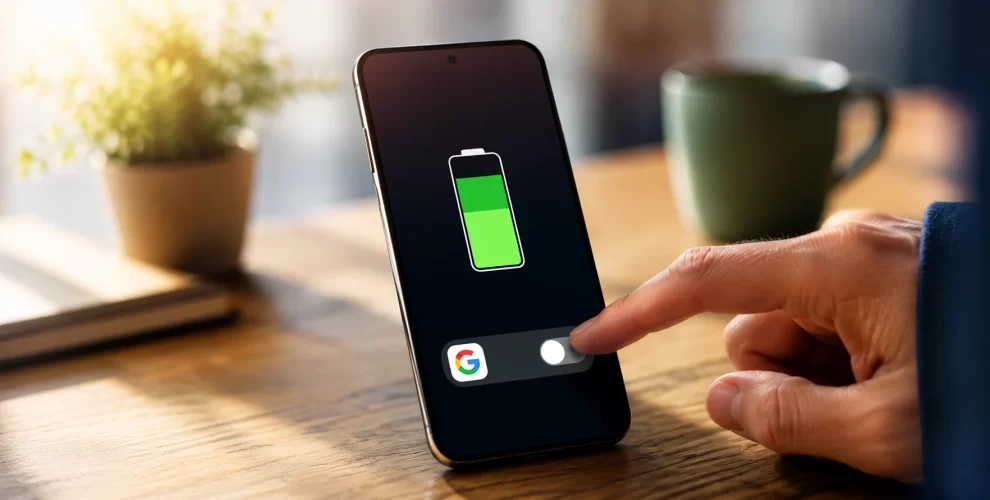
Turning Off One Google App Added Nearly Two Hours to My Battery Life
Many Android users struggle with battery drain, even when they are not actively using their phones.
While it may seem like your battery is being consumed by system services, the real cause can often be a single app running continuously in the background.
By adjusting a few settings in the Google app, you may be able to extend your phone’s battery life without uninstalling anything.
Why the Google App Can Drain Your Battery
When you check Android’s battery usage, you might notice Google Play Services near the top of the list.
However, Google Play Services is often only handling requests made by other apps.
The Google app regularly uses background features such as location services, voice detection, personalized content, and syncing.
These background processes can keep your phone running even when the screen is off, increasing battery usage throughout the day.
Simple Changes That Can Improve Battery Life
Instead of removing the Google app, you can reduce its background activity by turning off features you may not use regularly.
One option is disabling the Discover feed, which continuously refreshes news and personalized content in the background.
Another useful step is turning off the “Hey Google” voice activation if you rarely use hands-free commands.
You can also limit the app’s background activity by changing its battery settings to Restricted.
This reduces unnecessary background tasks while allowing the app to function normally when you open it.
These small adjustments can significantly reduce background power usage without affecting your phone’s core Android features.
Google Is Paying More Attention to Battery Performance
Google has introduced stricter battery usage standards for Android apps that drain excessive power.
Developers are now expected to reduce unnecessary background activity, especially apps that keep the processor awake for long periods while the screen is off.
Apps that regularly fail to meet Google’s battery efficiency standards could receive Play Store warnings or appear less often in app recommendations.
This encourages developers to build more battery-efficient applications.
Check Your Battery Usage After Making Changes
After updating the settings, use your phone normally for a full day.
Then open your battery usage page and check how much background activity the Google app has recorded.
If the background usage has decreased, the changes are working.
You can also check other apps with high background activity and adjust their battery settings if needed.
Conclusion
Improving your phone’s battery life doesn’t always require uninstalling apps.
Adjusting a few background settings in the Google app can reduce unnecessary battery drain while keeping all essential Android features available.
A few minutes spent optimizing your settings could reward you with noticeably longer battery life every day.